What you get
Each person adds the Typort Vault extension to Chrome. The admin sets the rules and sees the team. The team view runs on Typort's servers: it is free for a limited time and will move to Typort Pro later.
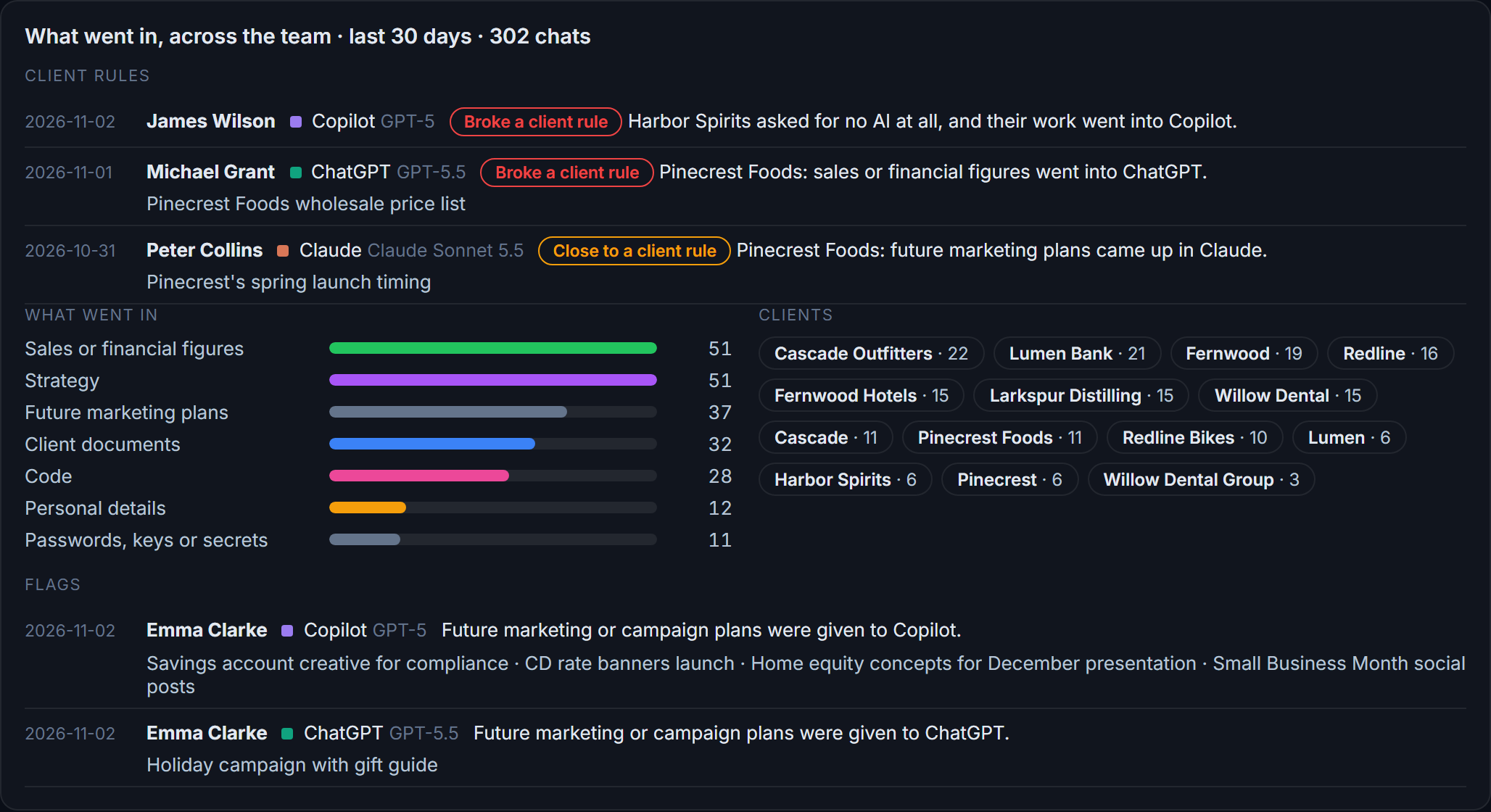
Flags say what went in, who, and when
Typort reads each chat and flags the material a client cares about: personal details, passwords, keys and secrets, client figures and documents, and future marketing or campaign plans.
Each flag names the thing, such as "API key" or "next month's campaign plan", with the person, the tool and the date. An admin sees the kind of thing, never the value. Only the person sees their own flagged value, partly hidden.
AI analysis (flags and client rules) is being switched on team by team.
Client rules, at two levels
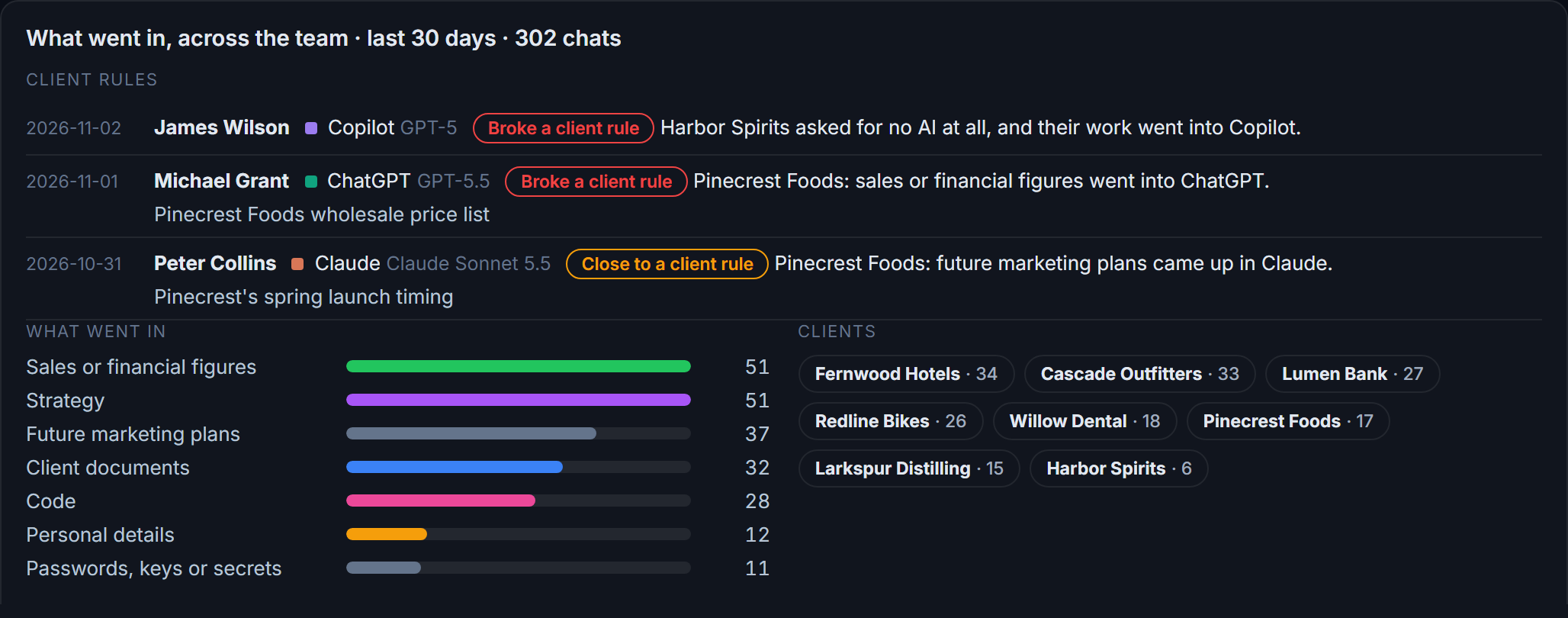
For each client, the admin writes down what they have ruled out: any kind of material, or no AI at all.
Every chat that names that client is checked against those rules. Broke a client rule means it went in. Close to a client rule means it came up, or something near it went in. Each one shows the person, the tool, the date and the chat.
You choose how much the company sees
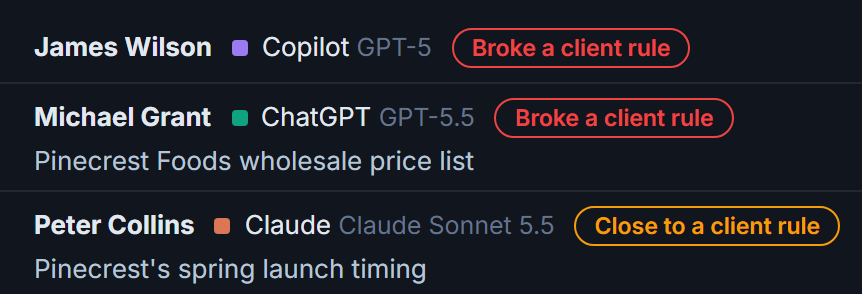
Five switches in the Admin tab set it, from light to full:
- Usage only: counts, spend, tools and allowances.
- Usage and flags: also what kind of thing went in, with who and when, and the client rules.
- The full record: admins, and team leaders for their own group, can open and search the chats and meetings. Every opening is recorded.
Everyone can see what was chosen
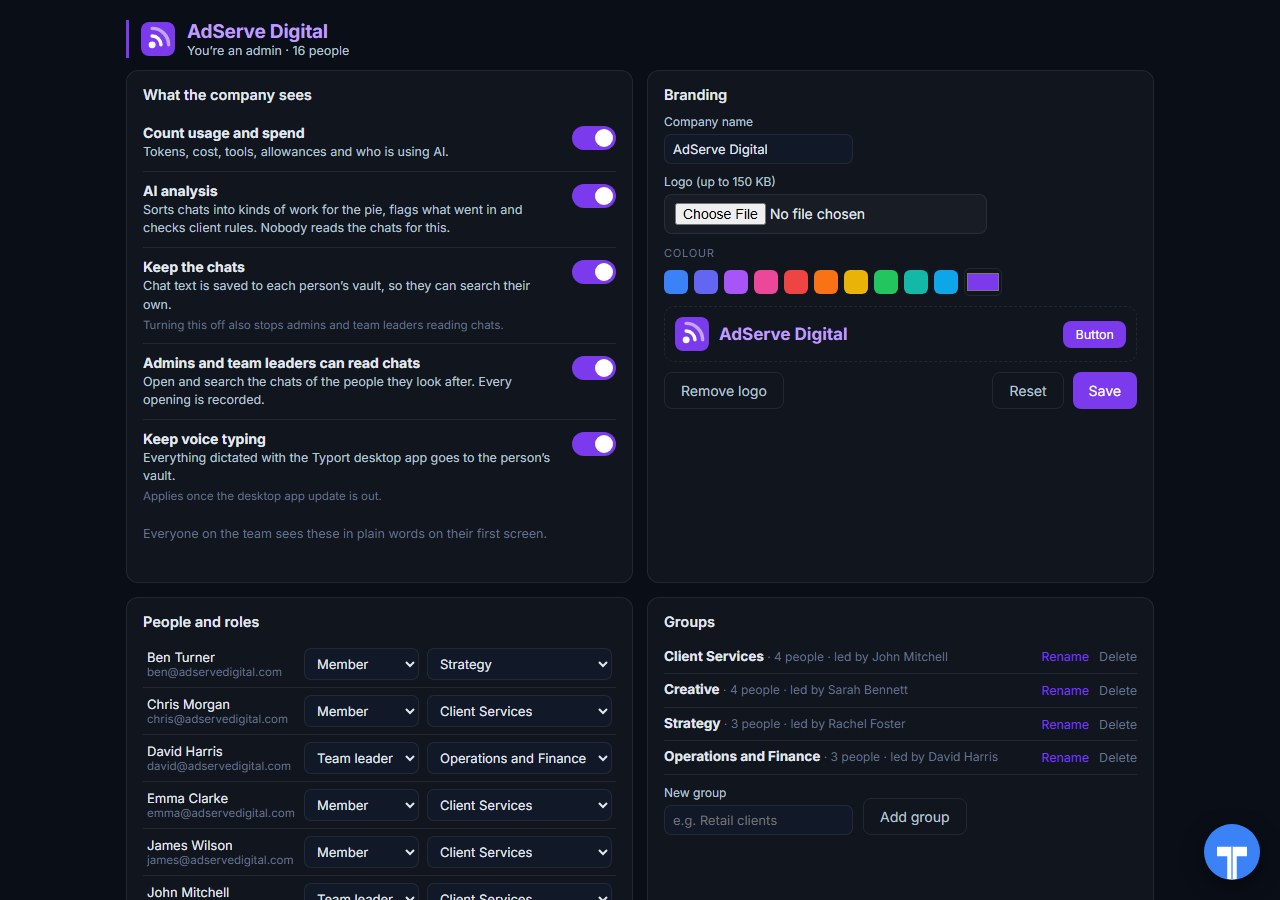
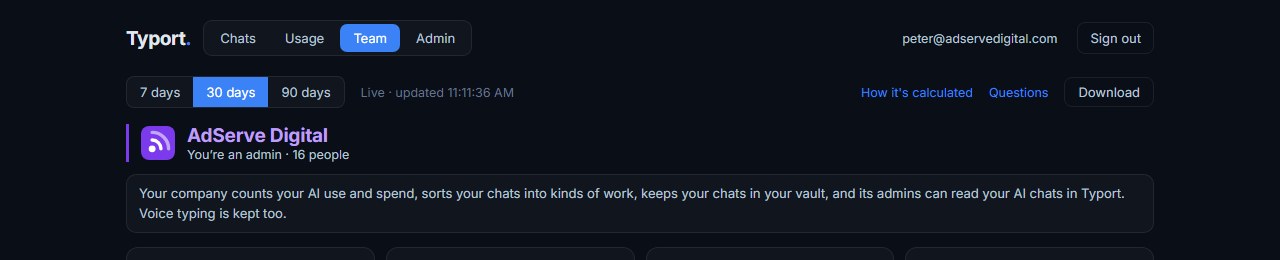
Every person on the team sees their company's choice in one plain sentence on their first screen, for example: your company counts your AI use and spend, sorts your chats into kinds of work, and its admins have full access to your AI chats in Typort, unless you use the AI's own temporary or incognito chat.
Nobody is recorded without being told what is kept and who can read it.
Look it up when a client asks
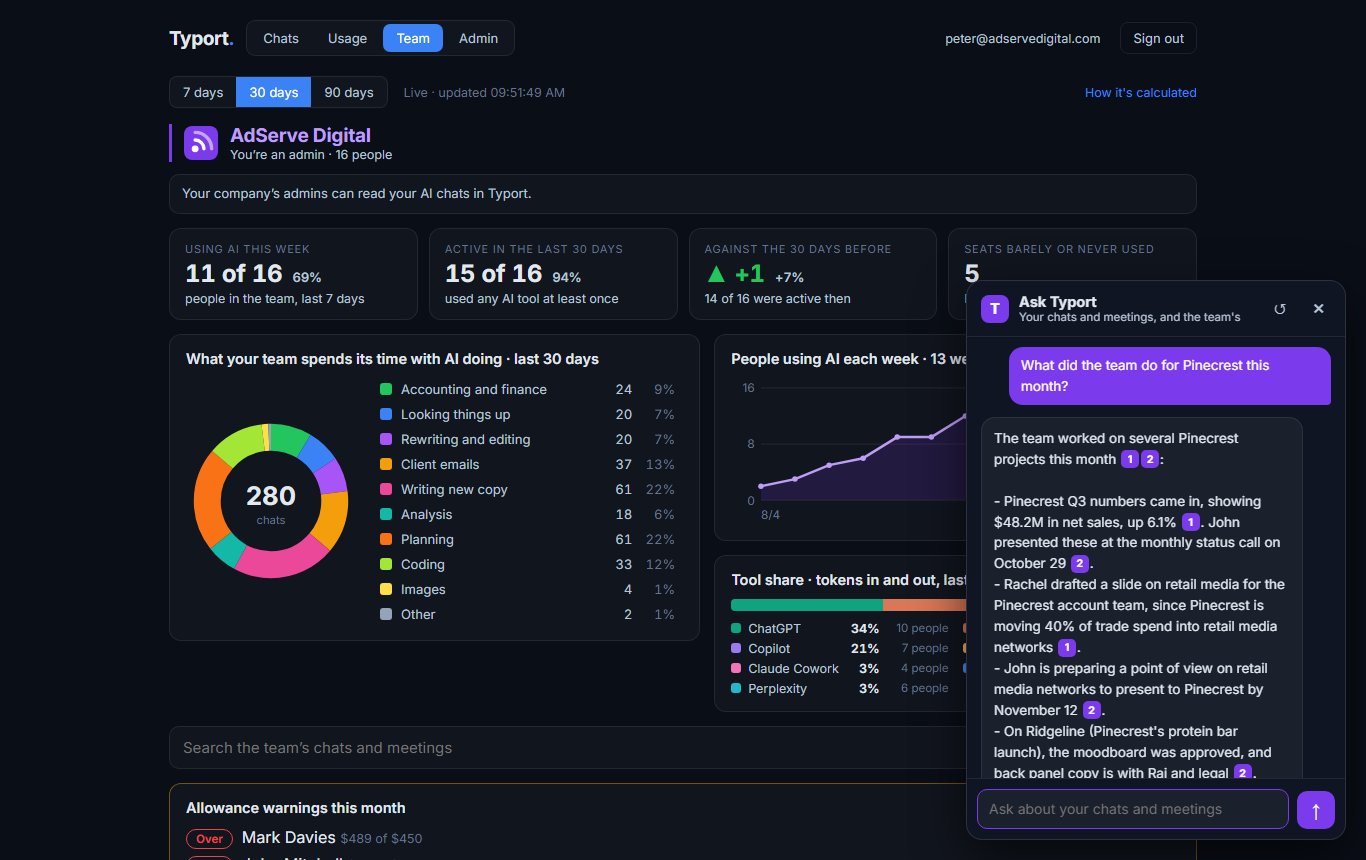
With the full record on, admins and team leaders can search the chats and meetings of the people they look after, each result with the person, the tool and the date.
Or ask Typort in plain words: did anyone put a client's figures into AI this month? The answer cites the chats it used, and only draws on what you are allowed to see.
Three roles
Admins see the whole company. Team leaders see their own group. Members see their own chats, usage and flags.
Spreadsheet export
Download the team page as a .csv for the range you picked: people, usage, flags and client rule hits. Never chat text or titles.
Nothing to change on your AI accounts
No admin API keys and no Enterprise plan. The extension works on the seats people already use, in the browser they already use.
Where Typort looks
The chat tools your people use every day, and the specialist ones they use for their own work.
Today
- ChatGPT, Claude, Perplexity and Grok in the browser, on any plan, including Business and Team seats.
- Past ChatGPT and Claude chats, including ones made in their desktop and phone apps, come in when a person brings in their account history from the extension.
- Meetings recorded with the Typort desktop app, in the same search as the chats.
In the next extension update
- Microsoft 365 Copilot Chat. It is built and comes with the next update.
Being added
- Gemini.
- The specialist AI tools staff use for their own work, such as Waldo for research and Krea for images.
- What Claude does in the tools it is connected to, such as Sigma and Basecamp.
From a promise to a record
- Write down the rulesSign in at typort.com/vault, start your team, pick how much the company sees, and record what each client has ruled out.
- Add the extensionEach person adds Typort Vault from the Chrome Web Store. Colleagues who sign in with the company's Microsoft account join the team on their own.
- Show the recordFlags and client rule hits build up with the person and the date. Download the spreadsheet for any range and show the client.
Typort beside the tools that block
Typort records and flags. If you also want uploads stopped at the browser or the network, these work alongside it.
FAQ
Does an admin see the passwords or figures that were flagged?
No. An admin sees the kind of thing that went in, such as API key or client figures, with the person and the date. Only the person sees their own flagged value, partly hidden.
Do staff know what the company can see?
Yes. Everyone sees their company's choice in one plain sentence on their first screen. When the full record is on, every time an admin or team leader opens someone's chat, it is recorded. Chats in the AI's own temporary or incognito mode are never collected.
Can Typort stop something going into AI?
No. Typort keeps the record and raises the flag. To block uploads at the browser or the network, use a tool such as LayerX or Microsoft Purview alongside it.
What goes in the spreadsheet?
The people, their usage, the flags and the client rule hits for the date range you picked. Never chat text or titles, so it can go to a client as it is.
Which AI tools does Typort see?
ChatGPT, Claude, Perplexity and Grok in the browser today, on any plan, plus past ChatGPT and Claude chats from their apps when a person brings in their account history. Microsoft 365 Copilot Chat comes with the next extension update. Gemini, specialist tools such as Waldo and Krea, and what Claude does in connected tools such as Sigma and Basecamp are being added.
What does it cost?
The team view runs on Typort's servers. It is free for a limited time and will move to Typort Pro later.
Keep the promise, and the record.
Sign in, start your team, write down the client rules and add the extension. The team view is free for a limited time and will move to Typort Pro later.
typort.com | Typort Business | Typort for compliance | AI usage monitoring | Privacy | Terms
© 2024-2026 Human Compute, LLC. ChatGPT, Claude, Microsoft 365 Copilot, Perplexity, Grok, Gemini, Waldo, Krea, Sigma, Basecamp, LayerX, Akamai, Microsoft Purview, Nudge Security and Cloudflare are trademarks of their respective owners. Typort is not affiliated with or endorsed by any of them.